"Service integration management" lists all 3rd party services that Teampel has supported.You may add them as needed.
Zoom
Zoom offers communications software that combines video conferencing, online meetings, chat, and mobile collaboration.You can bind Teampel accounts with Zoom accounts to empower your team to launch online meeting and video conference directly from within their Teampel client.
Before using the service, please purchase an appropriate plan on Zoom's official website.
Add and activate service
- Select "Service" > "Integrations".
- Find Zoom and click "Add" to the right.
- Open "Zoom setup" dialog box, and enter SDK Key and SDK Secret. Note: After buying an appropriate Zoom plan, you can find your SDK Key and SDK Secret in the "Manage" module in Zoom App Marketplace.
- Click "Save" to finish activation.
Set up Zoom account for your team
- Select "Organization" > "Division tree".
- Click "Edit" to the right of the member.
- Enter Zoom account in the "Edit member" popup dialog box.
- Click "Save"。
Disable service
Teampel client will not be able to use Zoom services after it is disabled.Zoom service settings will be kept.
- Select "Service" > "Integrations"
- Find Zoom, click "Disable" button to the right to see the "Deactivate Zoom" dialog box.
- Click "OK" to finish.
Remove service
Teampel client will not be able to use Zoom services after removal.Zoom service settings will be cleared.
- Select "Service" > "Integrations"
- Find Zoom, click "Remove" button to the right to see the "Remove Zoom" dialog box.
- Click "OK" to finish.
Gaaiho PDF Conversion Service
Gaaiho PDF Server provides massive PDF conversion capacity and SDK resources for organizations to integrate the product into their systems or workflows.We incorporate some of the conversion capabilities into Teampel based on Gaaiho PDF SDK.Before using the service, please contact us at sales@teampel.com to purchase a PDF Server license designed for Teampel.
Install and activate PDF Server for Teampel.
- Contact us to purchase a license of PDF Server.
- We will provide the installer and license file of PDF Server for Teampel.
- Double-click the installer to install PDF Server on the machine where Teampel Server is deployed. Note: If you are using the Linux version of Teampel Server, you must install PDF Server on another Windows machine and manually modify the configuration file of Teampel Server. (See "How to deal with the situation in which PDF Server and Teampel Server are deployed separately").
- Finish activation by consulting the user manual of Gaaiho PDF Server.
Add and activate service
- Select "Service" > "Integrations"
- Find "Gaaiho PDF Conversion Service" and click "Add" to the right.
- Open "Gaaiho PDF Conversion Service Setup" dialog box and enter the information related to the service account.
- Service account:[Required]This new service account will show up in the contact list as a contact.
- Belong to:[Required]Specify the division to which the service account belong.
- Display name:[Optional]Give a name to the service account.
- Description:[Optional]Write a description as part of the profile of the service account.
- Click "Save" to finish.
- Go back to TeampelServer/bin/, double-click GaaihoPDFSvr.exe to finish.Teampel client can interact with the service account for PDF conversion services.
Remove service
Teampel client will not be able to use PDF conversion services after removal.Service account will be disabled.
- Select "Service" > "Integrations"
- Find "Gaaiho PDF Conversion Service", click "Remove" button to the right to show "Service removal" dialog box.
- Click "OK" to finish.
How to deal with the situation in which PDF Server and Teampel Server are deployed separately
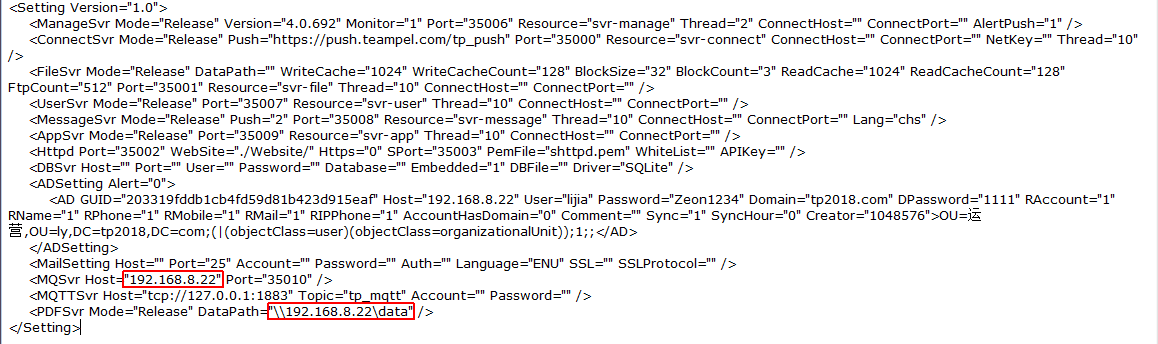
- Find "GaaihoSvrSetting.xml" in "TeampelServer/bin/". Find the MQSvr tag and change "Host" value to the IP of Teampel Server machine.For example:“192.168.8.22”.
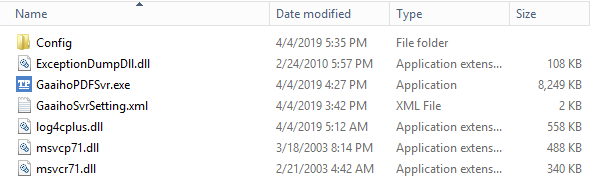
- Copy the following files from "TeampelServer/bin/" to "PDFServer/bin/";
- Find and open "GaaihoSvrSetting.xml" in "PDFServer/bin/";
- Find the "PDFSvr" tag and change the "DataPath" value to the path of the data directory of Teampel Server, e.g. \\192.168.8.22\Data.
- Double-click to launch "GaaihoPDFSvr.exe" in "PDFServer/bin/" to launch the service. From now on, members can interact with the service account for converting files.